Candidate Page
Last updated About 1 month ago
Guide
Candidate Search and Filtering in the Platform
Step 1: Search by Candidate Name
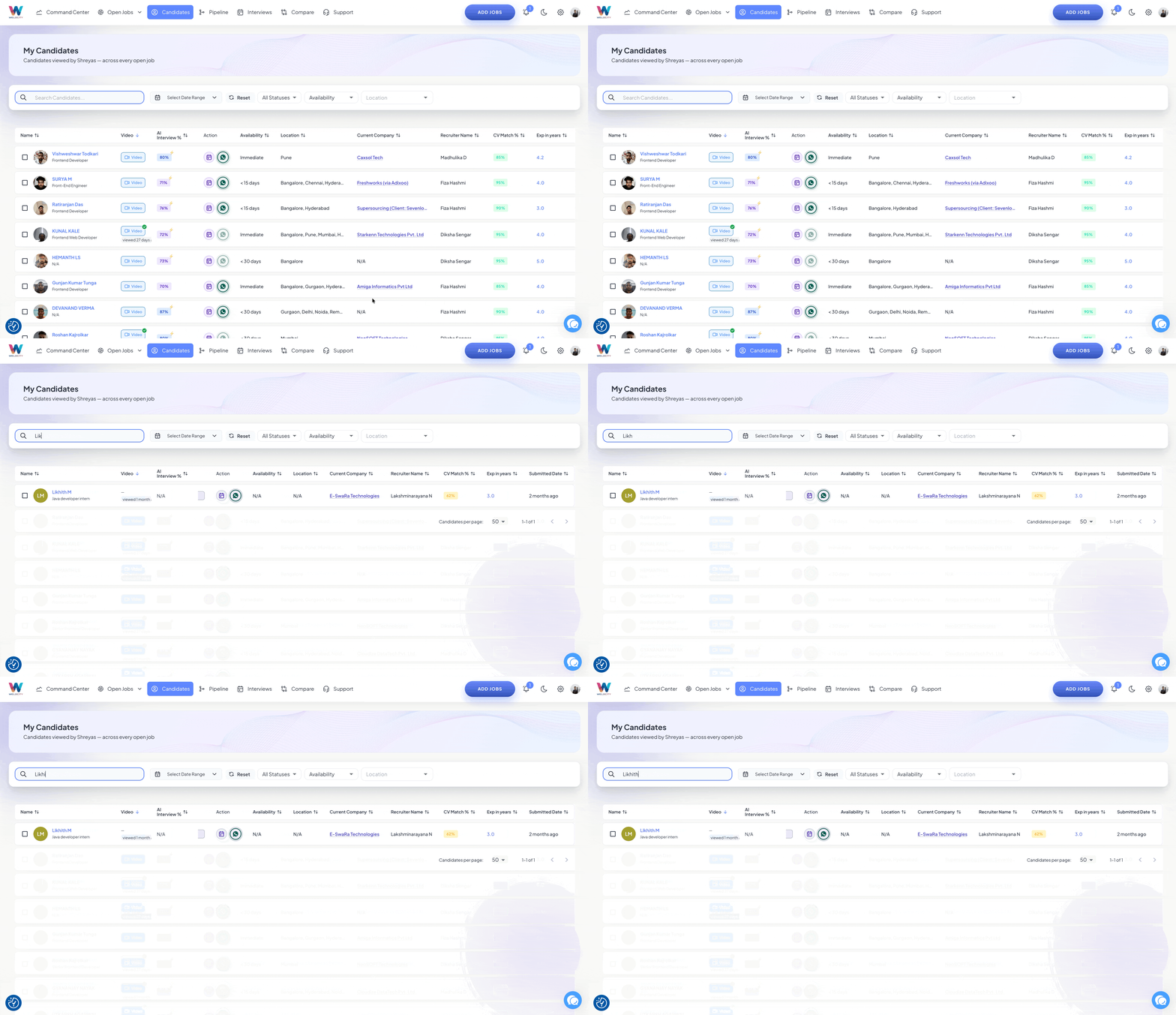
If you know the candidate’s name, you can search directly using the name search field.
For example, type “Praveen” into the name field, then select the suggested name from the dropdown.
You can either choose a specific candidate from the suggestions or click Search to view all candidates named “Praveen” in the database and then identify the one you are looking for.
Step 2: Refine Results Using Filters (Status, Availability, Interview, Location, and More)
After running any search, refine the results using the available filters on the page. You can filter by candidate status and availability.
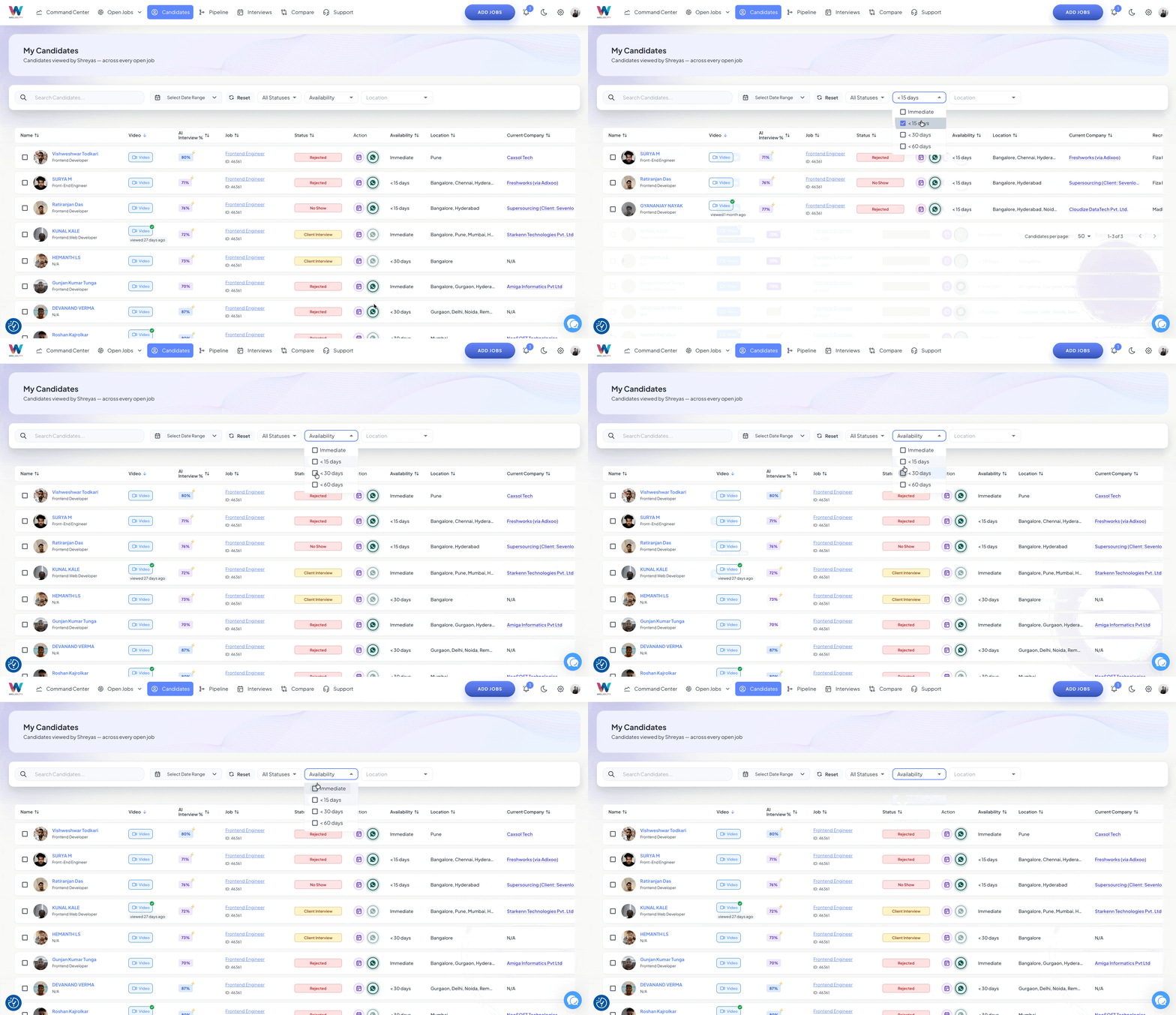
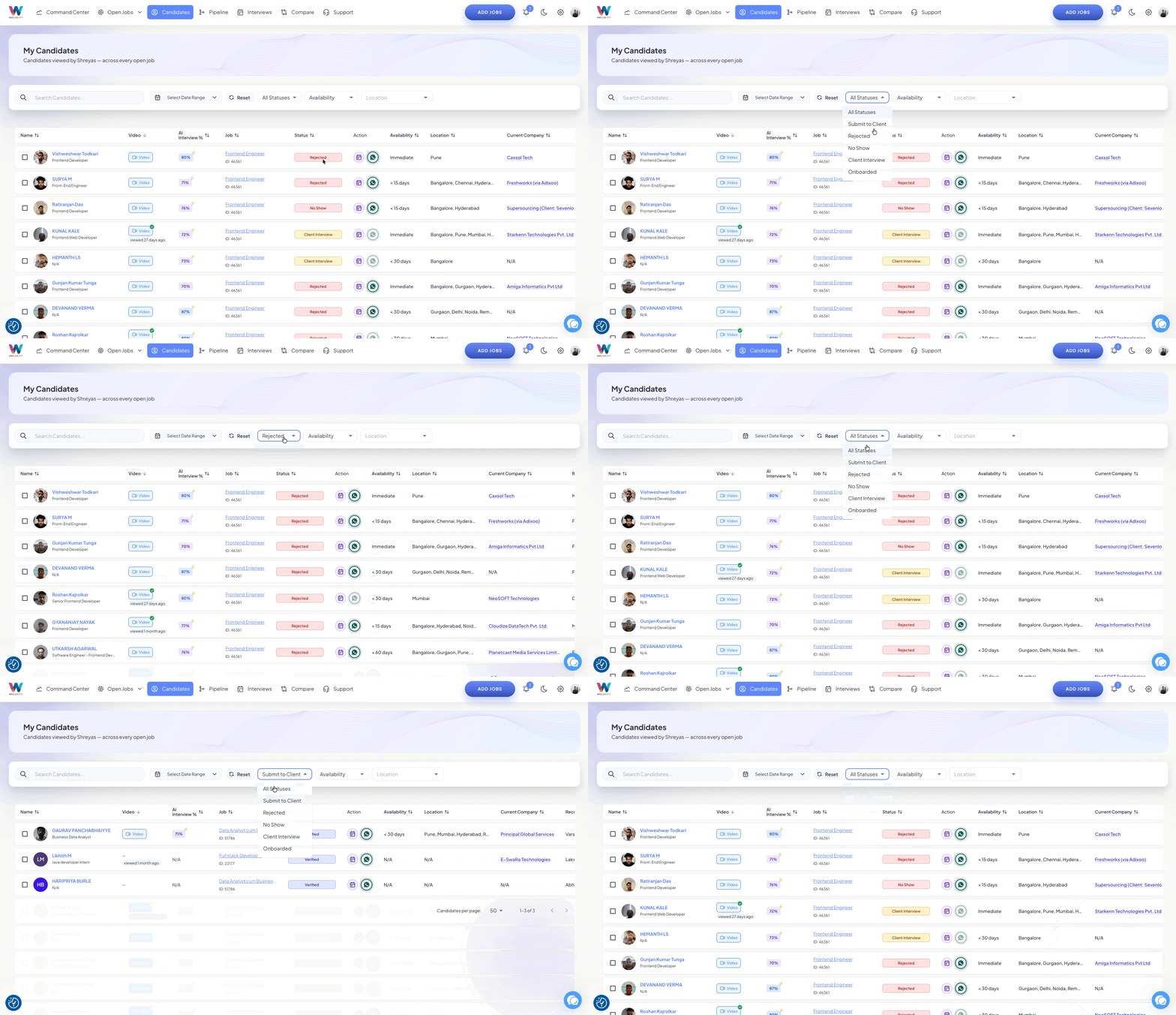
You can also apply filters related to interviews.
Further narrow down your results by using filters such as location and other advanced options.
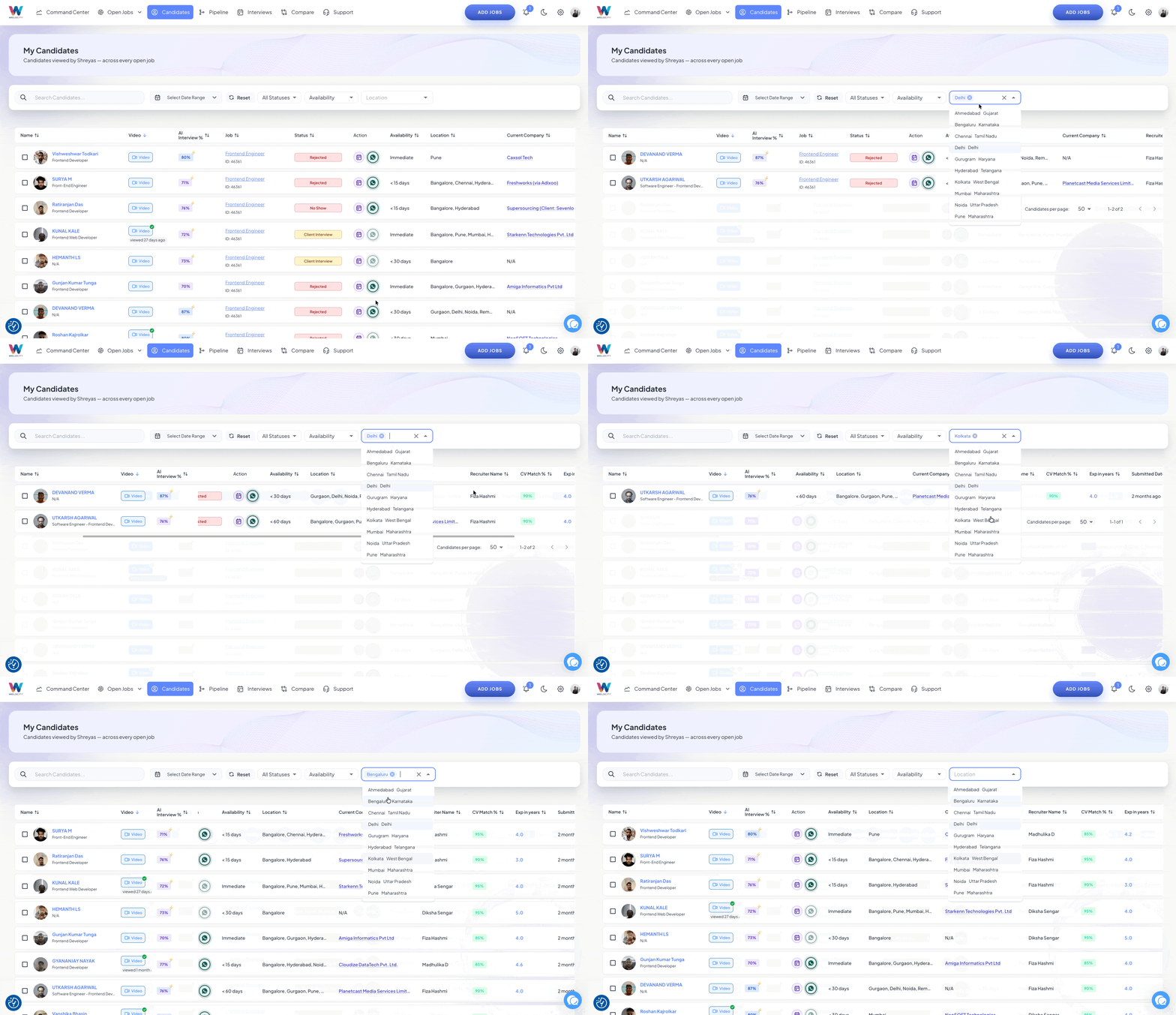
Use all applicable filters to precisely search for and identify the candidates you want to engage or poach for the day.

FAQ
Candidate Search Feature FAQ
This FAQ explains how to use the candidate search page to find and filter candidates based on skills, resumes, names, job titles, and other criteria. It is intended for users who need to locate suitable candidates efficiently within the system.
FAQ Content
Q1. Can I search for candidates by their name?
Yes, you can search using a candidate’s name if you have it. Type the name into the search field, select it if it appears in the suggestions, or run the full search. The system will display all candidates with that name in the database so you can choose the correct profile.
Q2. What filters are available to refine candidate search results?
You can refine search results using filters such as status, availability, interview, location, and other available filter options. Applying these filters helps you narrow down candidates to those who best meet your current requirements.