Manage and Invite Users
Last updated 29 days ago
Guide
The Manage & Invite Users page helps you manage your team members, their access levels, reporting structure, invitations, and active or inactive status.
You can view existing members, understand how users are organized within the team, invite new members, manage reporting relationships, and control whether users are active or inactive.
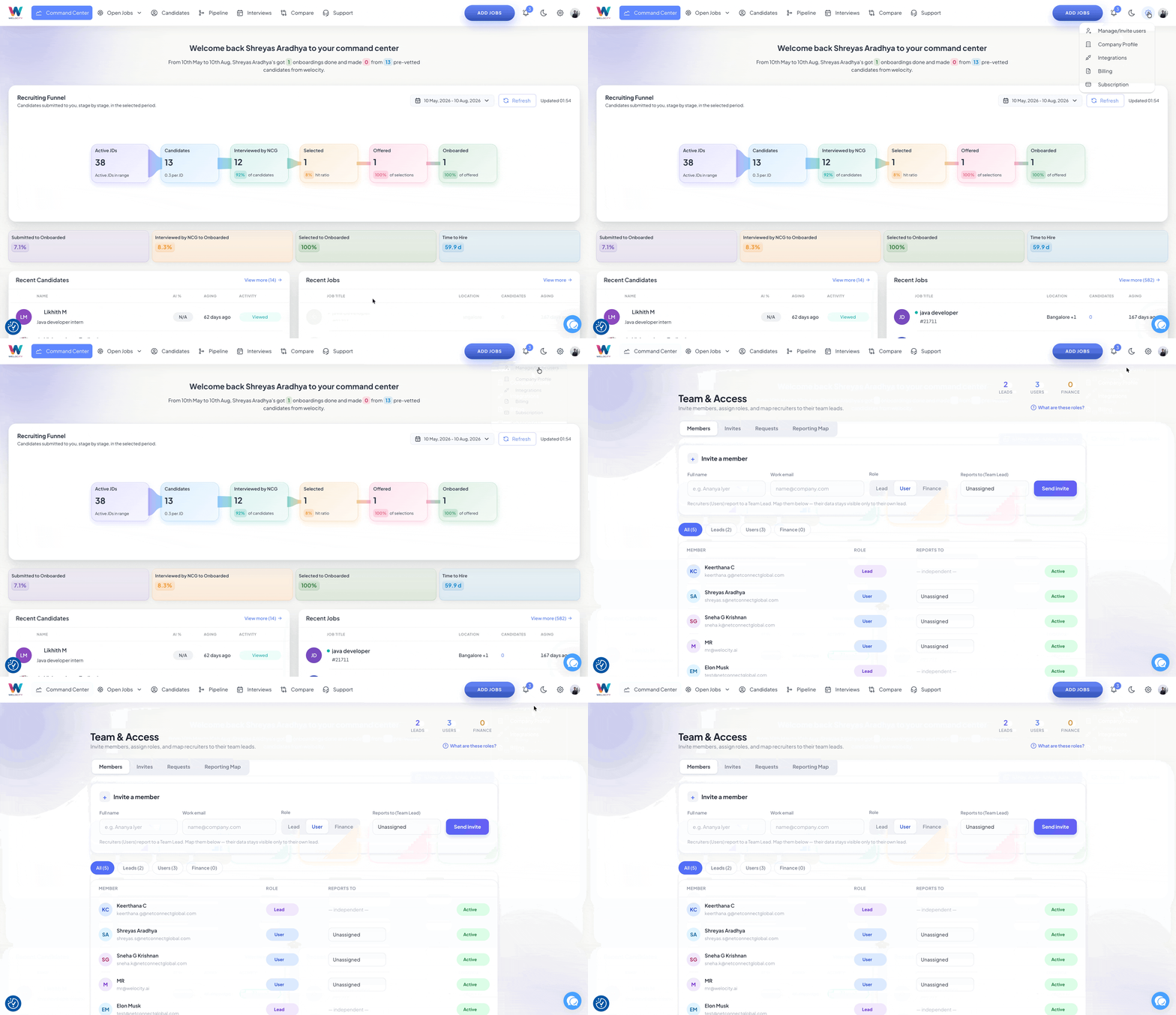
Step 1: View Team Members
Click Members to view all the members in your organization.
The page provides an overview of your team and shows how members are organized based on their access and reporting structure.
Users can be categorized into three access types:
Lead
User
Finance
A user can either report to another team member or be set up as an independent user.
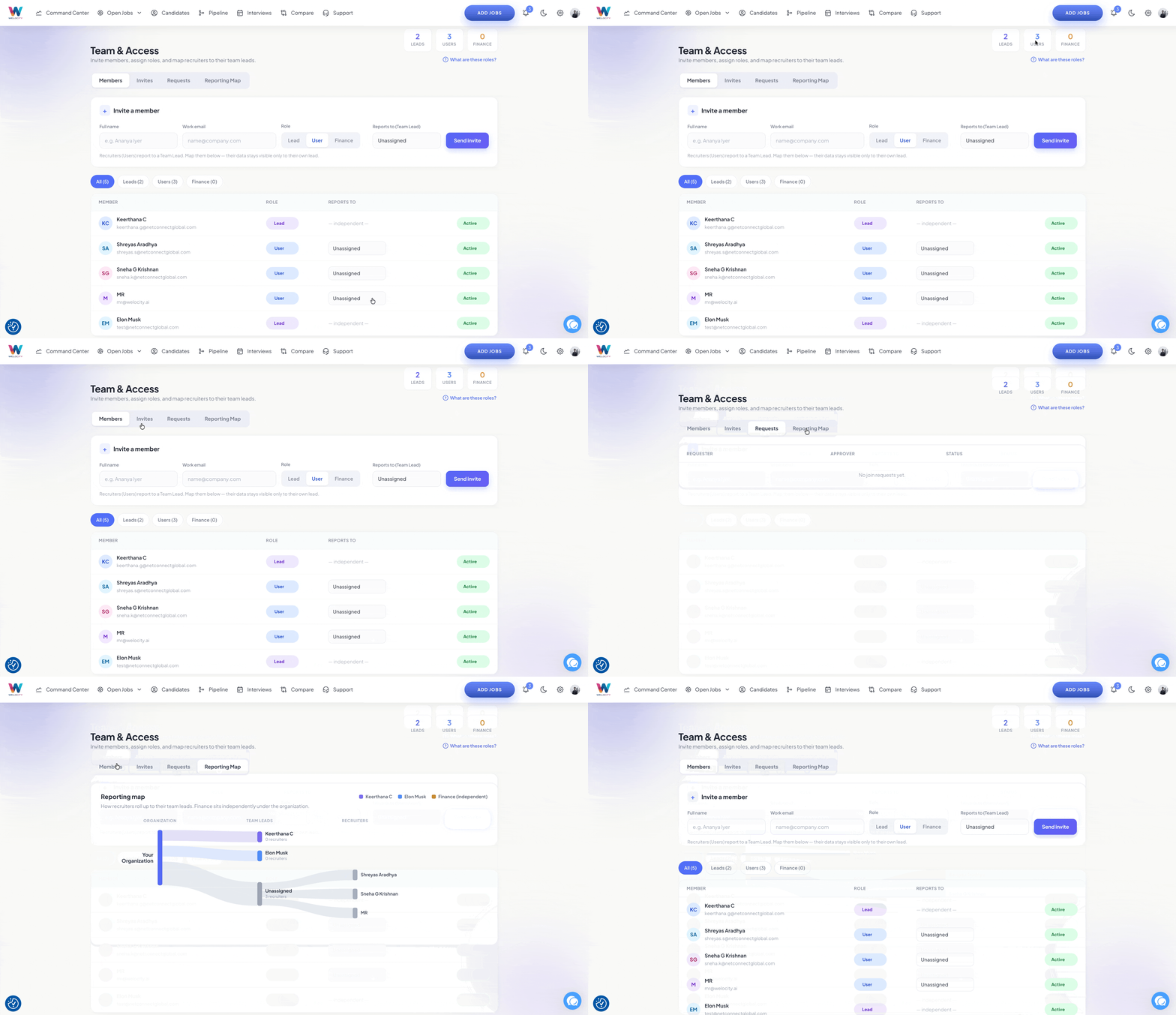
Step 2: Understand the Available Roles
Each role has a different level of access and responsibility within the organization.
Lead
Team Leads manage a group of recruiters. A Lead can only see the data and activity of the recruiters mapped to them. Data belonging to recruiters assigned to other Leads remains private.
An organization can have multiple Leads, with each Lead managing their own group of recruiters.
User
Users are recruiters who handle the day-to-day hiring activities. Each User is mapped to one Team Lead, and their activity is associated with that Lead.
A recruiter can be reassigned to a different Team Lead from the Members table whenever required.
Finance
Finance operates independently from the recruiter reporting structure and has organization-wide visibility.
Finance users are not mapped to a Team Lead and do not appear in a recruiter's reporting chain.
Step 3: View Users by Access Type
At the top of the Members page, you can see the total number of members under each access type.
The three categories show the number of:
Leads
Users
Finance members
You can click on each category to view the members assigned to that particular access type.
This helps you understand how many members are assigned to each role and how your organization is structured.
Step 4: Invite a New Member
To add someone to your organization, use the Invite Member option.
Enter the required information for the new member:
Name
Company Email
Then assign the appropriate access type based on their role:
Lead
User
Finance
If you are adding a User, you can also select the Team Lead they should report to.
Once the required details have been entered, send the invitation.
Step 5: Manage the Reporting Structure
The reporting structure defines how recruiters and Team Leads are connected within the organization.
A User can be assigned to a specific Team Lead, and their activity will roll up only to that Lead.
You can also reassign a recruiter to a different Team Lead when required.
Finance users do not belong to the Team Lead reporting structure and remain independent with organization-wide visibility.
Step 6: Review Invitations
Use the Invite option to view the invitations that have been sent.
You can see the number of invitations associated with your organization and keep track of users who have been invited.
Step 7: Handle New User Requests
When a new person from your organization attempts to log in, their details can appear under the relevant request section.
You can review the request and manage the user's access and reporting structure as required.
When approving or setting up the user, make sure they are assigned the appropriate role and, where applicable, the correct Team Lead.
Step 8: Change a User's Reporting Manager
You can update a user's reporting structure when organizational responsibilities change.
For a recruiter, you can:
Assign them to a different Team Lead.
Update their existing Team Lead.
This keeps the reporting hierarchy and data visibility aligned with your organization's structure.
Finance users do not need to be assigned to a Team Lead because Finance operates independently from the recruiter reporting chain.
Step 9: Activate or Deactivate Users
You can change a user's status between Active and Inactive based on your organization's requirements.
Use this option when a user should no longer have active access or when their access needs to be restored.
FAQ — Manage and Invite Users
This FAQ explains how to manage organization members, assign roles, invite new users, manage reporting relationships, and control user status.
FAQ Content
Q1. What can I do from the Manage & Invite Users page?
You can manage team members, view their roles, invite new users, manage reporting relationships, review invitations, and make users active or inactive.
Q2. What roles are available?
The available roles are Lead, User, and Finance.
Q3. What can a Lead see?
A Lead can see the data and activity of the recruiters mapped to them. They cannot see the data of recruiters assigned to other Leads.
Q4. What does the User role represent?
Users are recruiters who handle the day-to-day hiring activities. Each recruiter is mapped to one Team Lead, and their activity rolls up only to that Lead.
Q5. What can a Finance user see?
Finance operates independently from the recruiter reporting structure and has organization-wide visibility. Finance users are not mapped to a Team Lead.
Q6. Can an organization have multiple Leads?
Yes. An organization can have multiple Leads, with each Lead managing their own group of recruiters.
Q7. How do I invite a new member?
Click Invite Member, enter the person's name and company email, assign their role, select their Team Lead if applicable, and send the invitation.
Q8. Can I decide which Team Lead a recruiter reports to?
Yes. When adding a recruiter, you can assign them to the appropriate Team Lead.
Q9. Can I change a recruiter's Team Lead later?
Yes. You can reassign a recruiter to a different Team Lead from the Members table.
Q10. Does Finance need to be assigned to a Team Lead?
No. Finance operates independently and does not appear in the recruiter reporting chain.
Q11. Can I see how many members belong to each role?
Yes. The Members page displays the number of Leads, Users, and Finance members.
Q12. Can I see the invitations that have been sent?
Yes. Click the Invite option to view the invitations and see the number of invitations associated with your organization.
Q13. What happens when a new organization member tries to log in?
When a new person from the organization attempts to log in, their details can appear as a request. You can review the request and manage their role and reporting structure as required.
Q14. Can I deactivate a user?
Yes. You can change a user's status to Inactive when they should no longer have active access.
Q15. Can I reactivate an inactive user?
Yes. You can change the user's status back to Active when they need to regain active access.