Interview Management
Last updated 29 days ago
Guide
The Interview page helps you manage and track candidates who are at the client interview stage. You can view candidates based on their interview status, see which candidates require action, and switch between list and calendar views to understand upcoming and completed interviews.
Step 1: Select Candidates
At the top of the Interview page, you can select candidates individually or use the Select All option to select all candidates currently displayed.
Step 2: View Candidates by Interview Status
You can use the available status options to quickly view candidates based on their current interview status:
Actions Needed
Confirmed This Week
Awaiting
Completed
Step 3: Review Actions Needed
The Actions Needed section shows candidates where an action is required regarding their client interview.
For example, if a candidate is unavailable at the interview time selected by the client, they can request a change of interview time. Any such pending rescheduling request will appear under Actions Needed.
Step 4: Review Confirmed This Week
The Confirmed This Week section shows candidates who have confirmed that they are available for their client interview during the current week.
This allows you to quickly identify candidates whose interviews are confirmed and scheduled for the week.
Step 5: Review Awaiting Candidates
The Awaiting section shows candidates who have been sent the client interview schedule email but have not yet responded.
These candidates are still required to either:
Confirm the scheduled interview time, or
Request a rescheduling/change of time.
Step 6: Review Completed Interviews
The Completed section shows candidates who have already completed their client interview.
These candidates are now awaiting the client's feedback or decision based on the interview and the client's requirements.
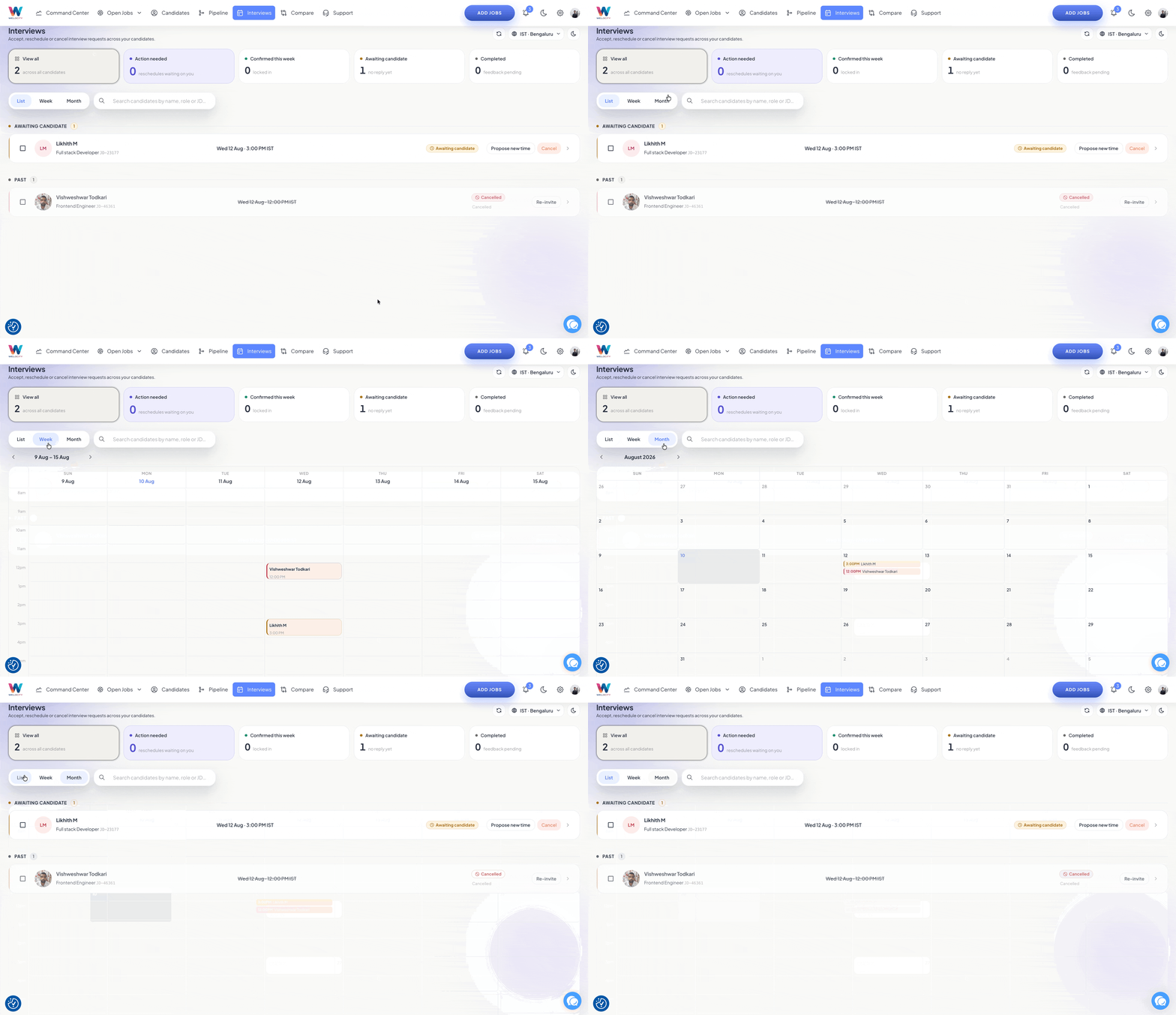
Step 7: View Interviews as a List
The List view organizes candidates according to their interview status.
Candidates are displayed in the following sections:
Actions Needed
Confirmed This Week
Awaiting
Completed
This view makes it easy to identify candidates who require action and track candidates through the interview process.
Step 8: View Interviews by Month and Week
You can also switch to the calendar view to get a month-wise and week-wise view of your interviews.
This view helps you understand the number and status of candidates across the interview schedule, including candidates who:
Are awaiting confirmation of their interview.
Have confirmed their interview.
Have completed their client interview.
Have completed the interview and are awaiting feedback from the client.
Using the calendar view gives you a broader picture of interview activity and helps you track upcoming and completed client interviews over time.
FAQ — Client Interview Management
This FAQ explains how to use the Interview page to track client interviews, identify candidates requiring action, and view interviews using list and calendar views.
FAQ Content
Q1. What is the Interview page used for?
The Interview page helps you manage candidates who are at the client interview stage and track their interview status from scheduling through completion and client feedback.
Q2. Can I select all candidates at once?
Yes. You can use the Select All option at the top of the page to select all candidates currently displayed.
Q3. What does Actions Needed mean?
Actions Needed shows candidates where an action is required, such as a pending request to reschedule the client interview.
Q4. What does Confirmed This Week mean?
Confirmed This Week shows candidates who have confirmed that they are available for their scheduled client interview during the current week.
Q5. What does Awaiting mean?
Awaiting shows candidates who have received the client interview schedule email but have not yet responded by confirming the scheduled time or requesting a change.
Q6. What does Completed mean?
Completed shows candidates who have already completed their client interview and are awaiting feedback or a decision from the client.
Q7. Can I view interviews in a list?
Yes. The List view organizes candidates into Actions Needed, Confirmed This Week, Awaiting, and Completed sections.
Q8. Can I view interviews by month and week?
Yes. You can use the calendar view to see interview activity month-wise and week-wise, including upcoming, awaiting, and completed interviews.
Q9. Does Completed mean the candidate has been selected?
No. Completed means the candidate has completed the client interview. The candidate may still be awaiting the client's feedback or decision.